
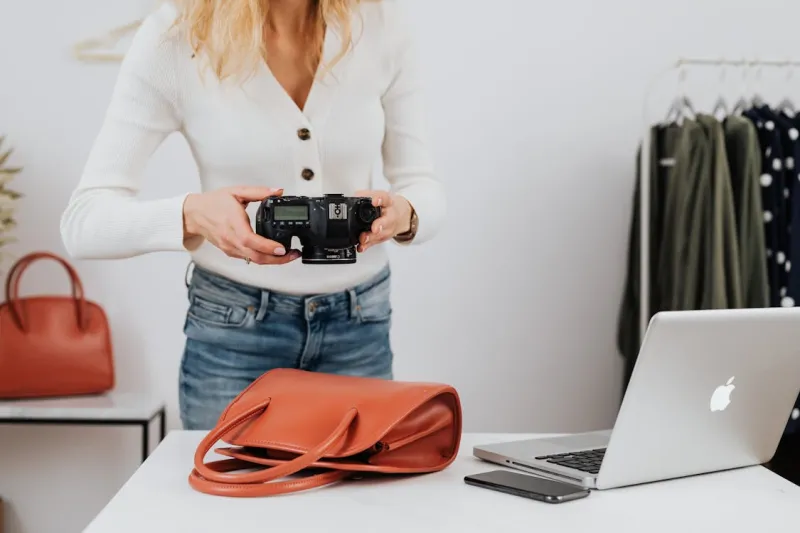
You don't need a $3,000 camera to create product images that convert. Modern smartphones — even mid-range models — have the sensors, processing power, and manual controls to produce listing-ready photos for Amazon, Shopify, Etsy, and eBay. This guide walks you through the exact setup, settings, lighting, and editing workflow to go from phone camera to published listing image, all for under $30 in equipment.
Why Smartphone Product Photography Works in 2026
Smartphone cameras have closed the gap with DSLRs for e-commerce photography. Here's why:
- Sensor quality: Flagship phones (iPhone 16, Samsung Galaxy S26, Pixel 9) shoot 48-200MP with computational photography that rivals studio setups
- Depth of field: Smaller sensors actually help — you get more of the product in focus without needing f/8-f/11 apertures
- Instant workflow: Shoot, edit, and upload from the same device
- Consistent results: Computational processing means less variability between shots
For product images displayed at 2,000×2,000 pixels on marketplace listings, a phone shot with proper lighting is virtually indistinguishable from a DSLR shot. The variable that matters most isn't the camera — it's the lighting.
Phone Settings: Get These Right Before You Shoot
Default phone camera settings are optimized for social media, not product photography. Change these before your first shot:
Turn Off HDR and AI Enhancements
HDR merges multiple exposures, which can create halos around product edges and shift colors. AI scene detection may oversaturate or add unwanted contrast. Disable both.
- iPhone: Settings → Camera → turn off Smart HDR, turn off Photographic Styles
- Samsung: Camera → Settings → turn off Scene Optimizer, turn off Auto HDR
- Pixel: Camera → Settings → turn off HDR+
Lock Exposure and White Balance
Auto exposure shifts between shots, creating inconsistent brightness across your product photos. Lock it manually.
- iPhone: Tap and hold on the product until "AE/AF Lock" appears. Slide the sun icon to adjust exposure.
- Samsung/Android: Use Pro mode (Manual mode). Set ISO to 100-200 and adjust shutter speed until the exposure looks right.
Shoot at Maximum Resolution
- Enable full-resolution capture (not the default "optimized" mode)
- If your phone supports RAW (DNG format), enable it — RAW files give you far more flexibility in post-processing
- iPhone: Settings → Camera → Formats → Most Compatible (for HEIF/JPEG) or use a pro camera app for RAW
- Disable digital zoom entirely — it destroys quality. Only use the optical lenses.
Use a Timer or Remote Shutter
Even micro-movements from tapping the shutter button cause blur at close range. Use a 2-second timer, voice command, or a $5 Bluetooth remote shutter.
Build a DIY Lightbox for Under $20
Lighting makes or breaks product photography. A simple lightbox eliminates harsh shadows and creates the even, diffused lighting that marketplace images require.
Materials List
| Item | Cost | Where to Buy |
|---|---|---|
| Large white foam boards (3 pieces) | $5-8 | Dollar store, craft store |
| White tissue paper or thin fabric | $2-3 | Craft store |
| 2 desk lamps (any will work) | $0-10 | Use existing, or thrift store |
| 2 daylight LED bulbs (5000-5500K) | $4-6 | Hardware store |
| White poster board (for seamless base) | $1-2 | Dollar store |
| Total | $12-29 |
Assembly Steps
- Create the base: Curve a white poster board from the back wall to the shooting surface — no crease, just a smooth curve. This creates a seamless white background with no visible horizon line.
- Set up the sides: Place foam boards on the left and right as walls and reflectors.
- Diffuse the lights: If using desk lamps, tape tissue paper over them or bounce light off the foam boards. Direct light creates harsh shadows; diffused light creates soft, even illumination.
- Position lights at 45°: Place one lamp at 10 o'clock and one at 2 o'clock, both slightly above the product. This mimics professional two-point lighting.
The Simplified Three-Point Lighting Setup
If you want to go beyond the lightbox, a three-point setup gives you more control and more professional results:
| Light | Position | Purpose |
|---|---|---|
| Key light | 45° to the left, slightly above | Main illumination — creates dimension |
| Fill light | 45° to the right, slightly above | Softens shadows from the key light |
| Back light / reflector | Behind the product, low angle | Separates product from background, adds edge definition |
Budget option: Two desk lamps as key and fill lights, plus a white foam board behind the product as a reflector. Total cost: under $20.
Key principle: The fill light should be about half the intensity of the key light. If using identical lamps, move the fill light further back or add an extra layer of diffusion material.
Lighting Tips by Product Type
| Product Category | Lighting Approach |
|---|---|
| Matte products (fabric, wood) | Soft, diffused light from both sides — minimal reflections |
| Reflective products (metal, glass) | Use a light tent or bounce light off white surfaces — never aim lights directly at the product |
| Transparent products (bottles, glasses) | Backlight is essential — place a light behind the product to illuminate through it |
| Dark products (black electronics) | Use slightly brighter lighting and a pure white background for contrast |
| Textured products (leather, knits) | Add side lighting at a low angle to emphasize texture and surface detail |
Shooting Angles: The Five Essential Shots
Every product listing needs multiple angles. Here are the five shots you should capture for every SKU:
1. Front Hero Shot (0°)
The primary listing image. Shoot straight on, with the product centered and filling 80-85% of the frame. This is the shot that appears in search results, so it must be clean, well-lit, and instantly recognizable.
2. Three-Quarter Angle (45°)
Rotate the product 45° to show depth and dimension. This is often the most informative single shot because it reveals the front, side, and top simultaneously. Many sellers find this outperforms a straight-on front shot as the hero image.
3. Top-Down / Flat Lay (90°)
Shoot directly from above. Essential for products that have important top-facing features (watches, tech gadgets, food packaging). Also great for showing what's included in a set or bundle.
4. Detail / Close-Up
Move in close to capture texture, stitching, buttons, ports, labels, or material quality. These shots build trust by showing the product at a level of detail that proves it's high quality. Use your phone's macro mode or 2x optical zoom.
5. Scale / Context Shot
Show the product in use or next to a familiar reference object. A backpack shown on a person communicates size instantly. A phone case shown on a phone shows exact fit. This is where dimension annotations become especially valuable.
Post-Processing: Edit on Your Phone
You don't need Photoshop. These mobile apps deliver professional results:
Recommended Apps
| Tool | Platform | Best For | Cost |
|---|---|---|---|
| Your phone's built-in photo editor | iOS, Android | Crop, straighten, exposure, white balance | Free |
| A free mobile photo-editing app | iOS, Android | All-around editing and selective adjustments | Free |
| A free RAW photo-editing app | iOS, Android | Color correction, batch presets, RAW editing | Free / freemium |
| A free background-removal app | iOS, Android | Background removal, white background creation | Free / freemium |
Essential Editing Steps
- Crop and straighten: Ensure the product is centered and the image is perfectly level. Use grid lines.
- White balance correction: Adjust until white areas are truly white (not yellowish or bluish). If you shot in RAW, this is non-destructive and precise.
- Exposure and brightness: Bring the background to pure white without overexposing the product. Use the Highlights and Whites sliders.
- Contrast and clarity: Slight increase in contrast (+10-15) and clarity (+5-10) adds dimension without looking over-processed.
- Background removal (if needed): Use a free background-removal app or your editor's AI masking tool to isolate the product on pure white. Verify the background is RGB (255, 255, 255).
- Export at full resolution: Save as JPEG at 90-95% quality, minimum 2,000×2,000 pixels.
Editing Mistakes to Avoid
- Over-sharpening: Creates harsh halos around edges. If you need to sharpen, use +10-20 max.
- Oversaturation: Makes colors look unnatural and causes returns when the product doesn't match.
- Heavy filters: Instagram-style filters have no place in product photography. Customers need accurate representation.
- Inconsistent editing: All images in a listing should have matching white balance, brightness, and style. Use your editing app's presets to ensure consistency.
Category-Specific Shooting Tips
Clothing and Apparel
- Best method: Flat lay on white surface OR mannequin (ghost mannequin preferred for Amazon)
- Angles: Front, back, detail of fabric/stitching, label
- Lighting: Soft, even — avoid harsh shadows that distort color
- Pro tip: Use clips on the back side to create a fitted look on flat lays. Iron or steam every garment before shooting.
Jewelry and Accessories
- Best method: Macro lens attachment ($10-15) or phone's built-in macro mode
- Angles: Front, profile, worn/in-use, clasp detail
- Lighting: Diffused light with a small reflector underneath for sparkle. Avoid direct light on reflective metals.
- Pro tip: Place jewelry on a small acrylic riser to lift it off the surface and reduce base shadows.
Electronics and Gadgets
- Best method: Clean with microfiber cloth first — fingerprints and dust show up clearly in photos
- Angles: Front, 45°, ports/buttons close-up, screen on (if applicable), with size reference
- Lighting: Two side lights with strong diffusion to minimize reflections on screens and glossy surfaces
- Pro tip: For products with screens, photograph the screen separately (in a dark room) and composite it in editing.
Food and Beverages
- Best method: Natural window light combined with a reflector
- Angles: 45° overhead (most appetizing), directly above for flat items, eye-level for bottles/cans
- Lighting: One main soft light source. Food looks best with slight directional shadows — perfectly flat lighting makes food look processed.
- Pro tip: Shoot quickly. Hot food has a 5-10 minute window before it stops looking fresh.
Home and Furniture
- Best method: In-context shots showing the product in a real room or styled setting
- Angles: Room-level shot showing scale, 45° detail, close-up of materials/joinery
- Lighting: Natural window light supplemented by a fill lamp. Avoid mixing color temperatures (daylight + warm indoor lighting).
- Pro tip: Stage with minimal props — a plant, a book, a coffee cup — to add warmth without distracting from the product.
Batch Shooting Workflow: 30+ SKUs Per Day
Once your setup is dialed in, efficiency becomes the priority:
- Prep all products first. Clean, tag, and arrange everything before turning on lights.
- Lock your settings. Once exposure, white balance, and focus are set for the first product, keep them identical for all similar products.
- Shoot in batches by category. All jewelry together, all clothing together — this minimizes setup changes.
- Use a shot list. For each SKU: hero, 45°, top, detail, scale = 5 shots. Multiply by SKU count to estimate time.
- Edit in batches. Apply the same editing preset to all shots from one session, then fine-tune individually.
Realistic output: With practice, you can shoot and edit 30-50 SKUs per day using this workflow.
Quality Checklist Before Upload
Run every image through this checklist:
| Check | Standard |
|---|---|
| Resolution | 2,000 × 2,000 px minimum |
| Background | Pure white RGB (255, 255, 255) |
| Product fill | 80-85% of frame (hero image) |
| Sharpness | Product details crisp at full zoom |
| Color accuracy | Matches physical product |
| File size | Under 10 MB (JPEG at 90-95%) |
| Consistency | Matches other images in the listing |
| No artifacts | No dust, fingerprints, halos, or compression artifacts |
FAQ
Can smartphone photos really compete with DSLR for product listings?
For most marketplace product images — yes. The final display size for Amazon and Shopify listing images is 2,000×2,000 pixels or smaller, which is well within smartphone capability. Where DSLRs still have an advantage is in very large or very small products (requiring extreme wide-angle or macro), products with tricky reflections, and situations where you need extremely shallow depth of field. For the vast majority of standard product photography, a modern smartphone with proper lighting produces indistinguishable results.
Do I need a tripod?
Strongly recommended. A phone tripod ($10-15) eliminates camera shake, ensures consistent framing across shots, and lets you use longer shutter speeds for better low-light performance. For batch shooting, a tripod saves significant time because you don't have to re-frame each shot.
What's the best phone for product photography?
Any flagship or upper-mid-range phone from the last 2-3 years will work. If choosing specifically for product photography: iPhone 16 Pro (best color accuracy), Samsung Galaxy S26 Ultra (most versatile zoom range), and Google Pixel 9 Pro (best computational processing). But lighting matters 10x more than the phone model — a 3-year-old phone with good lighting will outperform the latest flagship with bad lighting.
How do I get a perfectly white background without Photoshop?
Three options: (1) Shoot in a well-lit lightbox — if the lighting is even enough, the background will already be near-white. (2) Use a free background-removal app to auto-remove the background and replace with pure white. (3) In your phone's built-in editor or a free mobile photo-editing app, use the selective brush tool to paint the background to maximum brightness. Verify with a color picker tool that the background is RGB (255, 255, 255).
Should I hire a professional photographer instead?
If you have fewer than 20 SKUs and a budget of $15-30 per product for photography, hiring a professional is a reasonable option for your initial listing images. But if you regularly launch new products, run seasonal variations, or need to reshoot for optimization, learning to do it yourself saves thousands of dollars annually and lets you iterate much faster. Many six-figure Amazon sellers shoot entirely on their phones.
Sources & References
- Amazon Seller Central — Product image requirements (resolution, white background, file size)
- Digital Photography School — Product photography (lighting, angles, studio setups)
- Shopify — Product photography best practices for sellers
Turn the shots into measured images
A scale reference is any object or label in the frame that tells the eye how big the product is — a coin, a hand, a person, or a printed dimension. Good lighting and clean angles get a buyer to look; a scale reference is what stops them from guessing, and guessing is what returns a product. That is the one job a phone photo cannot do on its own: it shows the product, but it does not show the size.
The capability that closes the gap is a measured overlay — snap the line to the real product edges so the geometry is exact, then export one version at each platform's spec size so the crop never eats the label. The distinction that matters is measured versus invented: a photo editor or an AI image tool can draw an arrow that looks plausible, but only a measured overlay pins a number that is true of the piece. A phone can shoot a beautiful photo, but only a measured dimension tells a buyer whether it will fit — and fit is what gets ordered.
For an in-scale example, see the annotated furniture listing comparison. For the still-image companion to this workflow, how to photograph furniture covers the setups that keep dimensions legible, and product images blurry after upload explains where phone-shot detail disappears between export and the listing.